Write comments on orders, shipments and tours in Orbit MissionControl, choose who can read them, mention people, and see what carriers, drivers and shippers see in Orbit Connect, Orbit Cockpit and Orbit Hub.
Comments keep the conversation about a transport next to the Order, Shipment or Tour it concerns. Operators write them in Orbit MissionControl and decide who else may read each one. Carriers and drivers read and answer on the tour in Orbit Connect and Orbit Cockpit, and shippers read what is shared with them in Orbit Hub.
Every Order, Shipment and Tour in Orbit MissionControl has a Timeline. It lists the comments on that record together with the events Orbit logged for it, such as status changes. A new comment is visible to operators only. You share it with the shipper, the carrier or the public tracking page by switching those audiences on.
Key highlights:
One place per record: comments sit on the order, shipment or tour they are about, next to its history
You choose the audience:Operator always, and Shipper, Carrier and Tracking Page only when you switch them on
Mentions notify: type @ to mention a user or a team, and # to link a tour, shipment or other record
Tours collect related comments: a tour's Timeline can also show the comments on its shipments and their orders
Carriers and drivers take part: they read the comments shared with their carrier and write their own on the tour
Tour comments shared with their carrier, plus shared shipment and order comments
Tour comments and reactions on tour comments
Driver
Orbit Cockpit
The same as a carrier user
The same as a carrier user, plain text only
Shipper user
Orbit Hub
Comments shared with shippers on the order, its shipments and their tours
Nothing
Anyone with the link
Tracking page
Comments with Tracking Page switched on, on the shipment and its tour
Nothing
Shippers and tracking page visitors see the comment text and its date. The author shows as your company name, never as a person, and reactions and attachments stay hidden.
Open an order, a shipment or a tour in Orbit MissionControl and scroll to Timeline.
Open the composer
Select Write a comment… in the comment bar at the bottom of the page.
Write the text
Type your comment. The toolbar offers Bold, Italic, Bullet List, Numbered List and Insert Link. Rewrite with AI suggests a cleaner wording, and Undo Rewrite brings your own text back.
Mention and tag
Type @ or select Mention User or Team to mention someone. Type # or select Tag Tour, Shipment & More to link a record.
Attach files
Select Attach Files to add one or more files. Wait until the upload finishes; Submit stays disabled until then.
Choose the audience
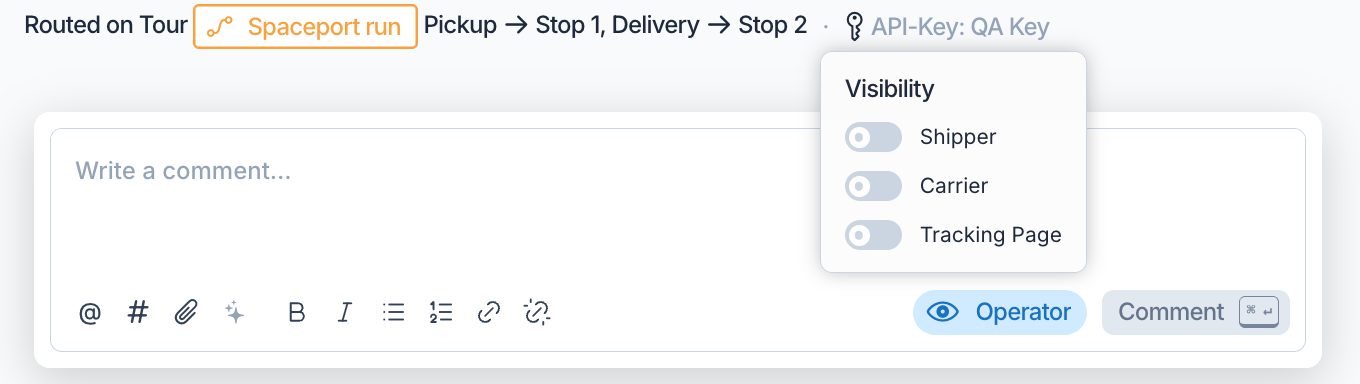
Select the Visibility button and switch on Shipper, Carrier or Tracking Page as needed.
Send
Select Submit, or press Ctrl + Enter (⌘ + Enter on a Mac).
The comment composer with the Visibility switches open.
The Visibility button shows the current audience, for example Operator • Carrier. Operators can always read a comment. The three switches add:
Shipper: users of the shipper can read it in Orbit Hub when it sits on their order, on one of its shipments or on a tour that carries them
Carrier: users and drivers of the carrier read it on the tour in Orbit Connect and Orbit Cockpit
Tracking Page: anyone who opens the shipment's or the tour's tracking page reads it
Sharing is always your choice. A reply starts with the audience of the comment it answers, and you can change it before you send. Once a comment is posted, a small label under it lists the audiences you shared it with.
The tracking page shows the shared comments of the tracked shipment and of its tour, or of the tracked tour and its shipments. Order comments never appear there.
A mentioned user receives a notification, and so does every member of a mentioned operator team. A mention of a whole shipper or carrier, or of one of their teams, links the name but notifies nobody. When you edit a comment, only the people you add get a notification.
Type # to link a record from Tours, Shipments, Orders, Vehicles, Carriers or Shippers. A tag is a link and notifies nobody.
Warning
A mention does not share the comment. If you mention a shipper user or a carrier user in a comment they cannot read, they get no notification. The Visibility button then shows an orange dot, and its tooltip reads, for example, "Julia can't see this comment yet". Switch on Shipper or Carrier if they should read it.
Reply quotes the comment above your new one. Replies are not nested threads. A reply always lands on the same record as the comment it answers, even when you reply from a tour's Timeline to a comment that belongs to a shipment.
React adds one of nine emoji: ✅ 👀 🙌 👍 ❤️ 😂 🎉 😮 😢. Select your reaction again to remove it.
Copy Link copies a link that opens the record at this comment.
Edit and Delete appear on your own comments only. Administrators cannot edit or delete other people's comments either. Delete asks for confirmation and cannot be undone.
An edited comment shows edited. Changing only the audience does not mark it. You cannot add attachments while editing.
When a comment is written in English and your Orbit MissionControl runs in German, or the other way round, Orbit shows a translation with the hint Translated. Select Show Original to read the text as written, and Show Translation to switch back. The translation shows plain text without formatting. If Orbit cannot tell the language, or the translation fails, you see the original.
Three buttons above the Timeline narrow what it lists:
All: comments and events
Comments: comments only
Events: the events Orbit logged, such as status changes
On a tour, a second control chooses how far the Timeline looks:
Option
Shows
Tour
The tour's own comments and events
Tour + Shipments (default)
Plus the comments on the shipments the tour carries
Tour + Shipments + Orders
Plus the comments on the orders behind those shipments
Orbit remembers your choice. Comments from a shipment or an order carry a label such as Shipment followed by its name; select it to open that record. Only comments are added this way; the events always belong to the tour. When the control is set to Tour, an orange dot reminds you that shipment comments are hidden.
Orders and shipments have no such control. Their Timeline shows only their own comments and events.
Open a tour in Orbit Connect. Comments sits above the stops. It lists:
the comments on the tour that your operator shared with your carrier, and the comments your carrier wrote
shared comments on the shipments currently on the tour, labelled Shipment and its name
shared comments on the orders behind those shipments, labelled Order
Each comment shows its author, how long ago it was written and its text.
To write a comment, type in Write a comment… and select Submit, or press Ctrl + Enter. You can format the text. Mentions, tags, attachments and an audience choice are not available here.
To react to a tour comment, select React and choose an emoji. Shipment and order comments are read-only: you cannot react to them. Orbit Connect has no replies, and you cannot edit or delete a comment once it is sent.
If your account can read comments but not write them, Comments appears only once the tour has a comment you can see.
Open a tour in Orbit Cockpit and find Comments in the tour details. It shows the same comments as Orbit Connect, oldest first, with the newest just above the text box. Shipment comments carry the shipment's name; order comments carry only Order.
Open Comments
Open the tour and tap Comments.
Write
Tap Write a comment… and type your message, up to 2,000 characters.
Send
Tap the send button. If sending fails, Orbit Cockpit shows Comment could not be sent. Please try again. and keeps your text.
To react to a tour comment, tap the smiley and choose an emoji. Tap a reaction again to remove it. Shipment and order comments have no reactions.
No comments yet means the tour has no comments you can see. Comments could not be loaded. means Orbit Cockpit could not fetch them, for example without a connection. The list also refreshes every minute and when you return to the app.
Orbit Cockpit sends plain text only: no formatting, mentions or attachments. If you do not see Comments on a tour, your account may not include reading comments; ask your operator.
A comment written in Orbit Connect or Orbit Cockpit goes to the operator and to the users of your own carrier. It does not reach the shipper or the tracking page, and you cannot change that. If the operator later gives the tour to another carrier, your carrier loses access to the tour and its comments, and the new carrier does not see them.
Every operator receives New Comment from a Carrier when a carrier or driver comments, so the office learns about a delay or a problem without anyone being mentioned.
On an order in Orbit Hub, Comments lists every comment your operator shared with shippers on the order, on its shipments and on the tours that carry them, oldest first. Each shows your operator's company name, how long ago it was written and its text. Orbit Hub is read-only: you cannot write, reply or react. If nothing is shared, the section does not appear.
Email for operators; push and browser for carriers and drivers, email optional
New Comment on Assigned Tour
The driver assigned to the tour
Push and browser
New Comment from a Carrier
Every operator, when a carrier user or driver comments
In-app message in Orbit MissionControl, email optional
Each person gets a notification only for a comment they can read. New Comment on Assigned Tour stops once the tour is completed or cancelled, and you never get a notification for your own comment or reaction. Shipper users get an email when they are mentioned in a comment on an order. Carrier users get emails for tour comments only. You turn each setting on or off under Notifications in your settings.
A comment notification in Orbit Cockpit opens the tour at its Comments section.
Julia, a dispatcher at Nordlicht Spedition, sees that a pickup in Lyon will start an hour late. On the shipment she writes "Pickup moves to 10:00, the ramp is blocked" and switches on Shipper and Carrier. Mohammad from the shipper reads the comment on his order in Orbit Hub. A mention would send him no email here, because shipper users get mention emails only for comments on an order. Max, the driver, sees it in Orbit Cockpit under the tour's Comments, labelled with the shipment's name. Shipment comments take no reactions, so he answers on the tour: when he arrives, he writes "On site, ramp still closed". Julia's team gets New Comment from a Carrier in Orbit MissionControl and reads it in the tour's Timeline.
Does mentioning someone let them read the comment?
No. A mention only notifies people who can already read the comment. Switch on Shipper or Carrier under Visibility to share it. The orange dot on Visibility warns you when a mentioned shipper or carrier user cannot read it.
Can I edit or delete another operator's comment?
No. Only the author can edit or delete a comment, and that applies to administrators as well.
Why does an order's Timeline not show the comments on its tour?
Only a tour's Timeline collects comments from related records. An order or a shipment shows its own comments. Open the tour and choose Tour + Shipments + Orders to see everything in one list.
Can a driver reply to a comment or mention someone?
No. Orbit Cockpit and Orbit Connect let carriers and drivers write tour comments and react to them, without replies, mentions or attachments.
Can a carrier see my internal comments?
No. A comment stays with operators until you switch on Carrier. Even then, a carrier sees it only on tours assigned to that carrier.
Do order comments appear on the tracking page?
No. The tracking page shows shared comments on the shipment and its tour, never on the order.
What happens to a carrier's comments when the tour goes to another carrier?
They stay on the tour for operators. The carrier that wrote them loses access to the tour, and with it to its comments, and the new carrier does not see them.